
Product feed in a campaign
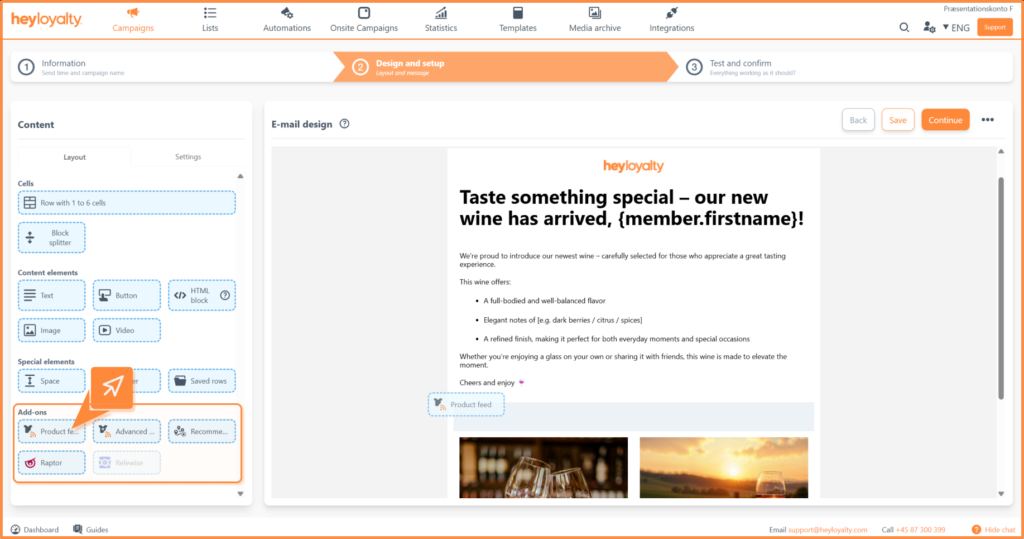
After you’ve filled in the information for your campaign, you can click Next and drag the product feed block into your campaign.
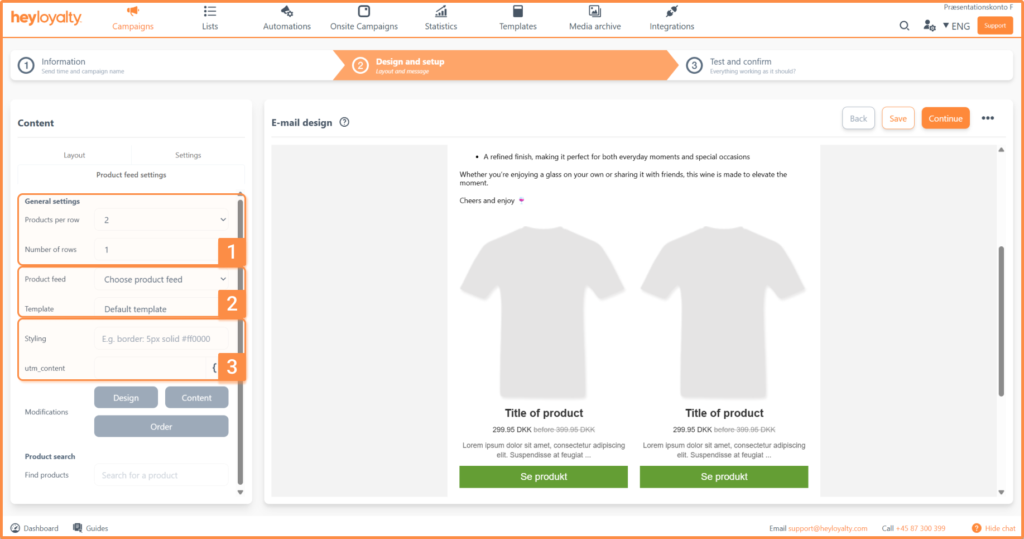
Then you’ll be able to choose your products. First, choose how many products per row to display, and then how many rows of products you want to insert.
Here you’ll see general settings. Then choose the product feed the products should be pulled from, as well as which template you want to use to display the products. If you don’t have a product feed template, reach out to our consultants, who can help you.
You can experiment with styling, utm_content, and modifications to design, content, and order after you’ve selected your products. If you have a good product template, it will rarely be necessary to change these.
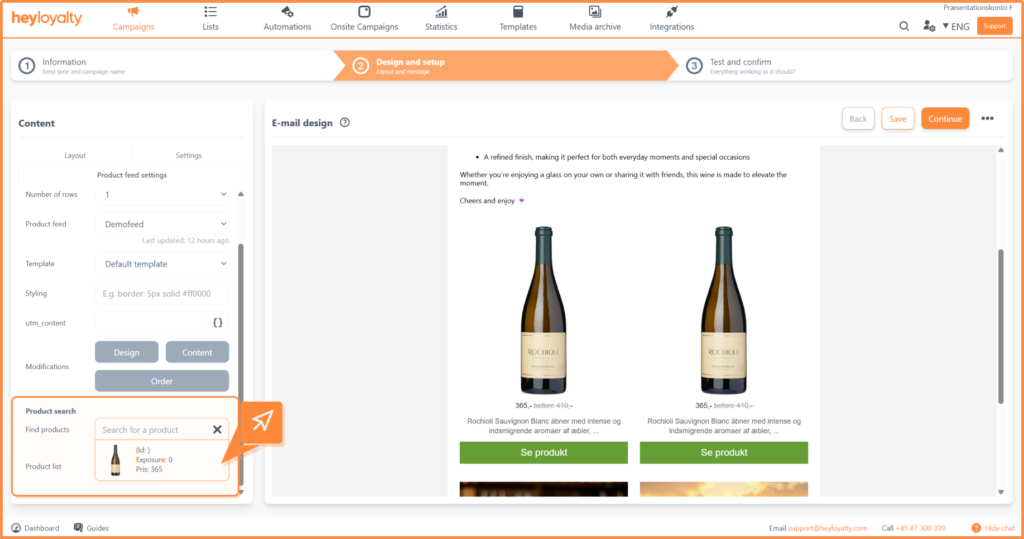
In the bottom field, you can find products. Search for your products by product name, price, item number or product ID.
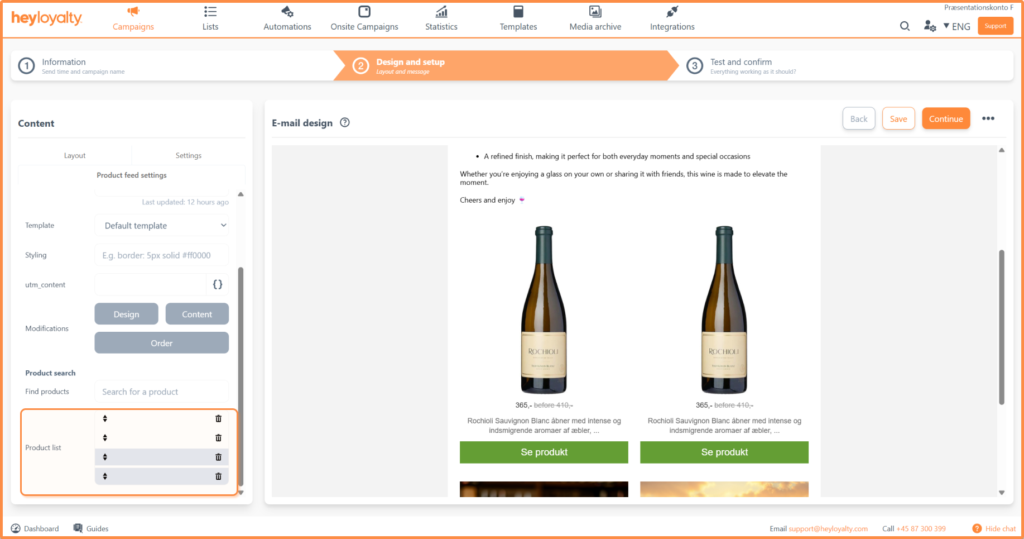
Select a number of products that matches the products per row and number of rows you chose above. If you’re not happy with the order of the products, you can drag and drop the products in the list to change the order in the email.
If you select more products than you’ve chosen to display under general settings, the products in the product search list will be crossed out in gray. They act as fallback products. This means that if one of the other products can’t be found in the feed at the time the email is sent, that product will be removed and the fallback product will be shown instead.

If you need information or help that you cannot find here on the guide site, you are always welcome to contact our support!
support@heyloyalty.com