
This guide shows you how to create a flow based on your Customer Loyalty integration in Heyloyalty. You will learn which triggers you can use to activate your flow in connection with your customer club. The guide also shows you how to create a member action that assigns or manages points.
The guide helps you leverage your customer club data to create more relevant and automated customer experiences.
Creating flows
If you have a Customer Loyalty integration set up on your list, you will be able to create flows based on the data we receive in Heyloyalty.
Once the integration is active, there will be a new option to select a trigger for your flow.
To create a new flow, go to the menu item Automations → Create new automation, and choose to create a flow.
Here you enter a name for your flow and select the list associated with your customer club. Once the list is selected, you will be given the option to select the Customer Loyalty Center trigger.
To see the different triggers, click Set trigger.
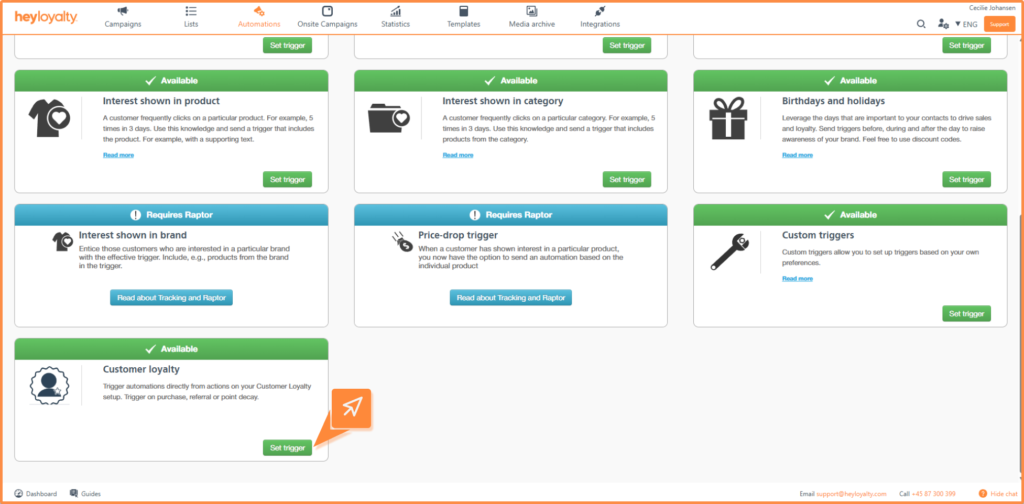
Trigger types
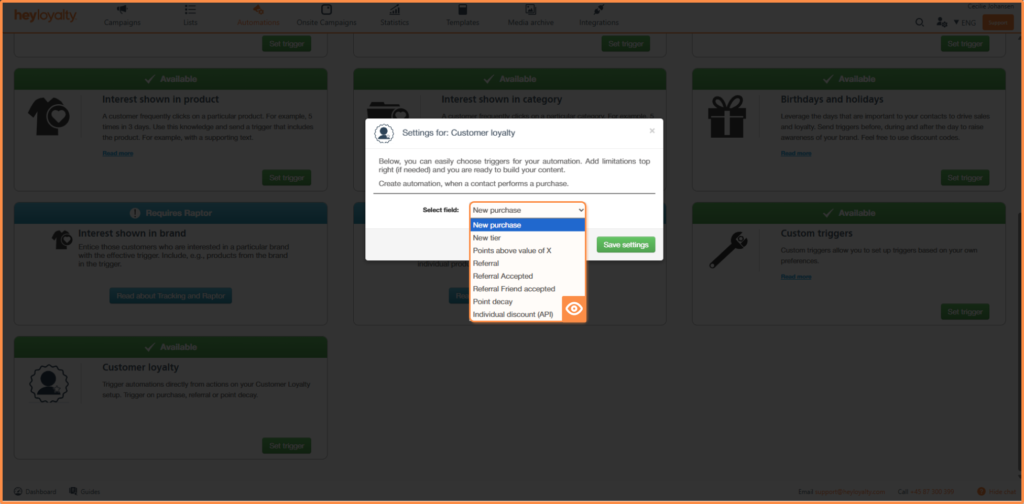
You can choose from the following trigger types:
- New purchase: Triggered when a contact completes a purchase with points or a discount.
- New tier: Triggered when a contact moves up to a new tier in your customer club.
- Points above value of X: Here you set a limit, for example 200 points. If the contact then exceeds 200 points, the flow is triggered.
- Recommend: Triggered when a contact refers a new person to the customer club.
- Recommendation approved: Triggered when a contact has approved a referral. The flow can be used to send a confirmation that they have signed up for the customer club.
- Friend has approved the recommendation: Sent to the member who sent the original recommendation and brought a new member to your customer club. With this trigger, you can easily notify the member and award bonus points.
- Point decay: Triggered when a contact’s points or discount is about to expire.
- Individual discount (API): Triggered when points are attributed via API.
Once you’ve selected your trigger, click Save settings and then Next in the top right corner to set up your flow.
Member actions in your flow
When you have a Customer Loyalty integration, you get access to new member actions in your flow. To use them, insert the Contact action element in your flow.
Under Select action, you can choose Assign loyalty points or Remove loyalty points.
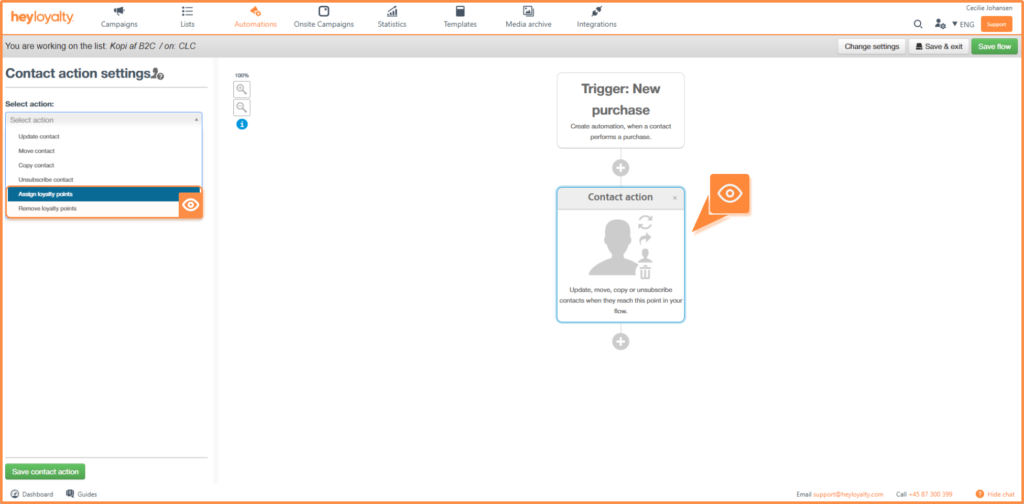
When you select one of the options above, the following options appear:
- Point type earned or available: Here you can choose between the following options:
- Available points: Points awarded will be available for the contact to use immediately.
- Earned points: Points only become available after an earning or waiting period.
- Number of points added or removed: Specify how many points to award to or remove from the contact.
- Action name: Give the action an internal name so that it is easy to identify in the flow.
Once you have set your preferences, click Save contact action.
Unlock the potential of your customer club
By combining Customer Loyalty data with automated flows, you can create more personalized and relevant customer experiences. For example, you can reward loyal behavior, activate customers at the right time and strengthen the relationship with your customer club.
We recommend experimenting with different triggers and actions to find the flows that create the most value for your business and your customers.

If you need information or help that you cannot find here on the guide site, you are always welcome to contact our support!
support@heyloyalty.com